
August 16, 2013
The installation process for concrete5 got a lot more attractive in 5.5, but there's a beautiful surprise for those who'd rather look at a terminal, instead of a browser window. A concrete5 installation can now be scripted!
There are a couple of caveats:
You'll need to make sure you're running the very latest version of concrete5 as of this how-to. That's 5.6.4.0, which is currently sitting in our github.com repository
You'll need to download the install-concrete5.php script from our command line tools for concrete5 repository – also found on github.com
If you can do that, installing concrete5 via the command line is easy.
Download concrete5
Download concrete5 or export concrete5 from github.com, and place it in the web root where you'd like to install concrete5.
Download install-concrete5.php script
Download the install-concrete5.php script from the concrete5-cli repository, and place it somewhere on your web host. (Note: currently Windows is NOT supported.)
PHP Location
Edit install-concrete5.php and change the first line of the script to point to your PHP binary. You can find this location by running
which php
from your command line.
Make the script executable.
Make the script executable from the command line:
chmod 755 ./install-concrete5.php
Install concrete5
Now you're ready to try installing concrete5. Just run ./install-concrete5.php with any or all of the following arguments.
--db-server= - specifies the location of your database server.
--db-username= - specifies the user for your database.
--db-password= - specifies the password for your database user.
--db-database= - specifies the database to use for concrete5.
--admin-password= - password to use for your admin user.
--admin-email= - email to use for your admin user.
--starting-point= - the handle for the sample content starting point you wish to use. Optional. If none specified then "blank" will be used.
--target= - A path to where you want concrete5 installed. Optional. If omitted the current directory will be assumed.
--site= - specifies the site name.
--core= - A path to the core you want to use. Optional. If none is specified it will be looked for within the target directory.
Example 1
./install-concrete5.php
    --db-server=localhost
    --db-username=cd_demo
    --db-password=mypassword
    --db-database=cd_demodb
    --admin-password=supersecr3t
    --admin-email=myemail@gmail.com
    --starting-point=standard
    --target=/home/cd_demo/public_html
Example 2
./install-concrete5.php
    --db-server=localhost
    --db-username=dbuser
    --db-password=eqriud
    --db-database=db2
    --site=MyDemo1
    --admin-password=passw0rd
    --admin-email=my@email.com
Screenshots
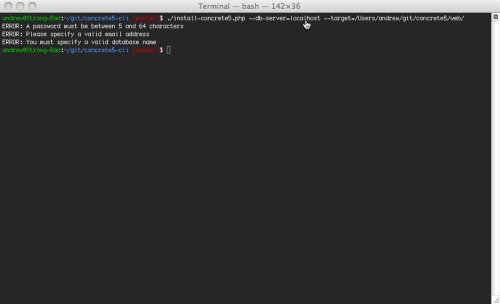
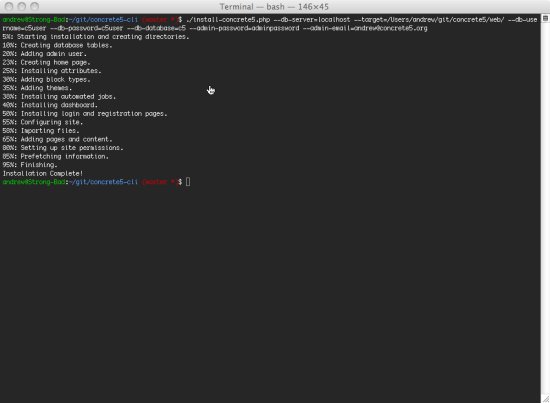
Note: If you're having trouble using the CLI with MAMP
Depending on how your local development environment is set up, you may encounter an "Unable to connect to database" error. Your mysql socket might need to be symlinked to reference the path that PHP expects to use. Please see this solution by JordanLev.
Loading Conversation