websites that Deliver
Concrete CMS delivers the power and simplicity your organization needs to create and manage a complex web presence easily and effectively.

Trusted by the best






In a crowded marketspace, Concrete stands out as a solution that pairs robust functionality with ease of use and a low cost of deployment.
Ben Dickie
Research Director - Enterprise Applications at Info-Tech Research Group

Read More Reviews

powerful intuitive Editing
- Edit content with WYSIWYG right on your webpage.
- Comprehensive built-in features solve most needs with no extensions.
- Easy training; editors become proficient within moments.
- Streamline content creation and management effortlessly.

Because the system is a pleasure to use for our authors, our content is fresher.
Stefan Glut
Online Communications Officer, BASF Corporation
Robust collaboration
- Assign roles and groups for controlled access for everything, down to the individual block of text.
- Fine-tune advanced permissions for security and access to any feature.
- Workflow content approvals for quality assurance.
- Track edits with comprehensive change logs.
- Review, compare and revert with easy version control.


Amazing and really well thought out CMS. Great for editors and very good for developers to build off.
Tim Macknelly
Creative Director, TM Designs
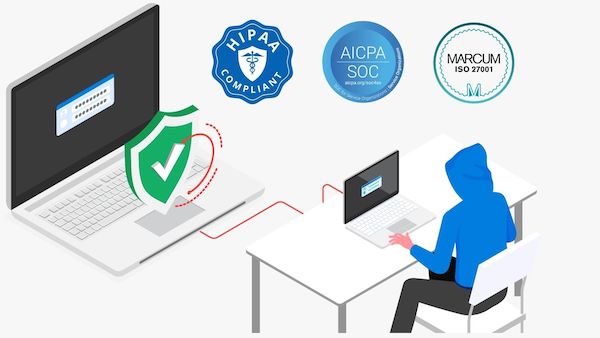
Ironclad security & compliance
- Out-of-the-box ISO:27001 certified security.
- SOC 2 and HIPAA compliant hosting for assured data protection.
- Chosen by the U.S. Army for stringent security needs.
- Tailored hosting to meet specific organizational compliance.

Concrete CMS powers an Army web presence that hundreds of editors use with very limited training. It also meets our complex security and compliance requirements.
Melanie Reagin
U.S. Army, IMCOM
Learn More
You need a CMS that saves you time.
Schedule a demo and tell us a bit about your project and we'll help you decide if Concrete CMS should be on your shortlist.
Recent Blog Posts
Show All Articles
Best Practices in SLA Management
Apr 23, 2024
This blog post delves into the best practices for negotiating, monitoring, and managing SLAs, providing valuable insights on maintaining high service quality and reliability in web content management. Whether you're a service provider or a client, mastering these practices is essential for fostering successful business relationships and achieving operational excellence in the ever-evolving digital realm.
Why is Uptime Critical in Web Content Management?
Apr 23, 2024
This blog post explores the significance of uptime in web content management, detailing how it impacts everything from customer satisfaction to financial performance and SEO rankings. Join us as we dive into what makes uptime a cornerstone of successful online operations and how maintaining high uptime standards can transform your business outcomes.
SLAs: What They Are and Why They Matter
Apr 23, 2024
What exactly are SLAs, and why are they so crucial for both service providers and their customers in web content management? This blog will explore the intricacies of SLAs and highlight their importance in managing expectations and ensuring service quality.