• Join Now
  • Sign In
  • Cart
  • Instant Setup
  • Download
Logo
  • About
    • Try it Out
    • For Developers
    • For Agencies
    • For Designers
    • For Anyone
    • Testimonials
    • Showcase
    • History
    • Our Philosophy
    • Credits
    • What does free mean?
    • Blog
  • Community
    • Members
    • Forums
    • Chat
    • Karma
    • International
    • Jobs
    • eNewsletters
  • Developers
    • Download concrete5
    • Join Beta Team
    • Translate concrete5
    • Bug Tracker
    • Submit to Marketplace
    • Code Submissions
    • News
    • Community Leaders
  • Marketplace
    • Add-Ons
    • Themes
    • Add-on Installation
    • Deal Of The Day
    • Swag
    • Theme Contest 2012
  • Services
    • Hosting
    • Support Options
    • Consulting
    • Training
    • Enterprise
  • Documentation
    • Getting Started
    • Editor's Guide
    • Developers Guide
    • How-Tos
  • eCommerce

Making PayPal work

Step 1 - Get to payment options.
FirefoxScreenSnapz197.png

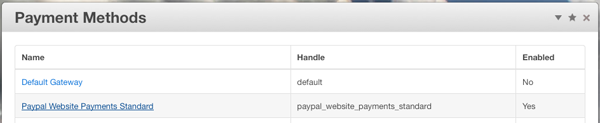
Goto your Dashboard > eCommerce > Payment tab and look for the Edit button next to Paypal Website Payments Standard.

Click it.

Step 2 - Setup your PayPal Information
FirefoxScreenSnapz198.png

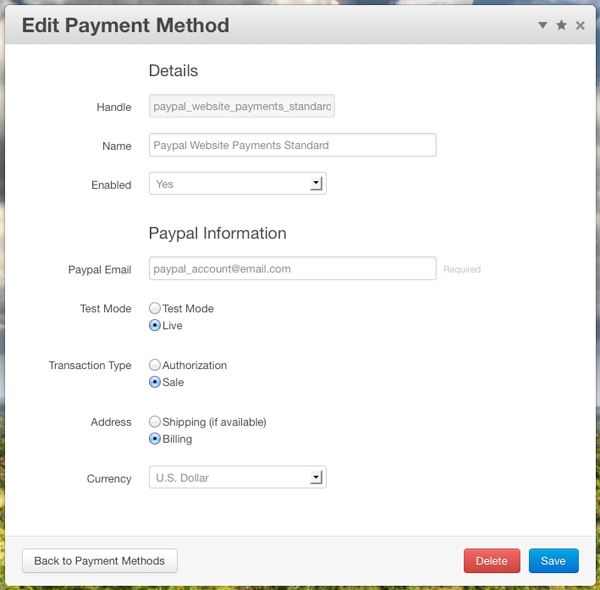
Here's what everything means:

  • Handle - don't worry about it, it's for the backend.
  • Name - this is what the front end displays if there are multiple payment options available to a customer. Again, don't worry about it.
  • Enabled - this defaults to No but you should set it to Yes. It turns on this payment method.
  • Paypal Email/Business ID - put in the email address you use to login to PayPal with.
  • Test Mode - PayPal has a pretty cool sandbox for testing out things like this. If you leave this on Test Mode it will point to the sandbox. That site looks a lot like regular PayPal but will never charge real money. This is great for testing, if you're ready - choose Live.
  • Transaction Type - If you set this to Authorization the cart will only check to see if the funds are available. If so, it will process the order and it's up to you to work out when/how real payment happens. Most people will want this set to Sale.

Hit Update Payment Method and you're done.

That's it. Two steps and this will work safely and securely. Now go sell something!


You've done all of that and it's still not working

In order for paypal to work correctly and for the eCommerce addon to complete orders that are paid with paypal the behind the scenes process works as follows:

  1. Customer hits checkout on your site, clicks the pay with paypal button.
  2. Customer pays through paypal and you get an email from paypal and money lands in your paypal account.
  3. The customer is brought back to your site and is displayed an "order complete" message.
  4. If the "IPN" process works correctly your concrete5 site recieves a behind the scenes request from paypal and then your site passes that request over SSL back to paypal.  If this handshake is completed without error the order is marked as paid and your site will send you and the customer an order completed email - all is good.

When the IPN process fails

The sympton:
If the IPN process fails you'll get an email and money from the customer, but the orders won't show up in your Dashboard.

The possible problems

  1. Your site is on a local server, protected by http authentication or is for some other network reason not reachable by paypal's IPN process.  This is usually only a problem when you're testing a non-live site.
  2. You're on an older version of the eCommerce add-on.  We fixed a major bug with this in version: 1.8.5.1
  3. Check Paypal's IPN settings.  Log into your paypal account, go to My Account -> History -> IPN History and make sure all of the transactions have a status of "Sent." If you see any that are not "sent" put your site's URL in the settings for IPN URL and save.
  4. While your site may or may not be accesible over ssl (with a https:// in the address bar of your browser) concrete5 needs to communicate back to paypal using ssl.  This is a very common php setting that almost all servers have, but if your server's php system is not setup with "openssl" then the IPN process will fail. 
Thumbnail Intermediate Core Team

Learn More

  • eCommerce Home
  • Pre-Sale Questions
  • Reviews
  • Documentation
    • Operator's Guide
      • Adding Products
      • Product List
      • Product Detail
      • Product Attributes
      • Customer Choices
      • Order Attributes
      • Product Sets
      • Orders
      • Discounts
      • Shipping
      • Payment & Sales Tax
      • Making PayPal work
      • Settings
      • How to Uninstall/Reinstall (old)
    • Developer's Guide
  • Features
  • Version History
  • Additional Shipping and Payment Gateways
  • License
  • Roadmap
  • Support
  • Marketplace
  • Add-Ons
  • eCommerce
  • Documentation
  • Operator's Guide
  • Making PayPal work

Do you have questions

  • What are users saying?
  • Who is using concrete5?
  • What makes concrete5 easy?
  • Why develop on concrete5?
 

We’re on “The Twitter”

RT @concrete5japan: Mac の WEBコーディングソフト「Coda 2」リリーススペシャルUST番組 な週刊 #concrete5 を YouTube にアップ http://t.co/TcD80TOk 買うの迷っている人、貴重なナカノヒト、長谷川さん @noby829 さんの話をきこう! ^KU

Follow concrete5

About

  • Try it Out
  • For Developers
  • For Agencies
  • For Designers
  • For Anyone
  • Testimonials
  • Showcase
  • History
  • Our Philosophy
  • Credits
  • What does free mean?
  • Blog

Community

  • Members
  • Forums
  • Chat
  • International
  • Jobs
  • eNewsletters

Developers

  • Download concrete5
  • Join Beta Team
  • Translate concrete5
  • Bug Tracker
  • Beta
  • Submit to Marketplace
  • Code Submissions
  • News
  • Community Leaders
  • User Doc Group

Marketplace

  • Add-Ons
  • Themes
  • Add-on Installation
  • Deal Of The Day
  • Swag

Services

  • Hosting
  • Support Options
  • Consulting
  • Training
  • Enterprise

Documentation

  • Getting Started
  • Editor's Guide
  • Developers Guide
  • How-Tos

Legal

  • Privacy Policy
  • Terms of Use
  • Refund Policy
  • Contact Us
© 2008 to 2012 Concrete CMS Inc. All Rights Reserved.

Sign In?

You must have a user account and be signed to perform this action.

  • Sign In
  • Register